Data Apps Pipelines
Running The Pipeline
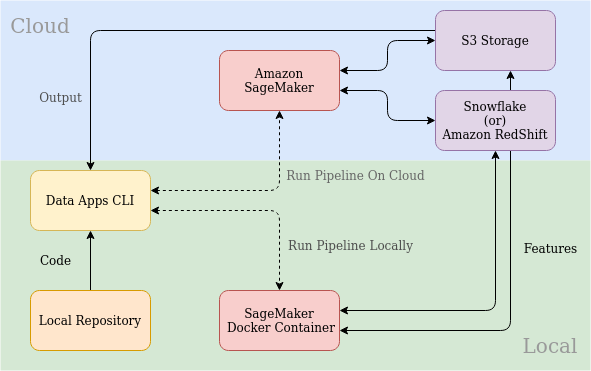
The pipeline steps can be run as a SageMaker processing job on the cloud or locally using SageMaker pre-built docker containers.
flow diagram
Run Command
Use following command to run the pipeline
#Example 1: Run the pipeline on the cloud
$ rlabs aws pipeline run --pipeline-config-file pipeline.yaml --credentials-file credentials.yaml --repository-path /path/to/repository --instance-type ml.t3.xlarge --job-id my-job-id

#Example 2: Run the pipeline locally
$ rlabs aws pipeline run -p pipeline.yaml -c credentials.yaml -r /path/to/repository -i local -j 345687
Note
- Params:
-p,--pipeline-config-file: path to the pipeline configuration file-c,--credentials-file: path to the credentials file (contains AWS credentials, data warehouse credentials)-r,--repository-path: path to the data apps project repository-i,--instance-type: instance type to run the pipeline [default: ml.t3.xlarge]-j,--job-id: job id to run the pipeline, will get used while storing output or reading input inbetween processing pipeline steps
Sagemaker Code Script
This script will part of every data apps project. It will be starting script to start the the pipeline step as a SageMaker processing job
There are few manditory arguments that the sagemaker code script needs to implement. these arguments will get passed from pipeline run script
Note
- Mandatory arguments:
-j,--job-id: Job id to be passed to notebook execution script [required]-i,--input-data-zip: Path to input data zip file-ip,--input-data-path: Path to input data directory-o,--output-data-path: Path to the output directory [required]-s,--source-code-zip: Path to the source code zip file [required]-r,--requirements-path: Path to the requirements.txt file [required]
Warning
Without these arguments, the pipeline script will fail to run.
This script can also have optional arguments. These arguments will directly taken out from pipeline configuration file and passed by the pipeline run script. So be sure to implement all the parameters specified in the pipeline configuration file in the sagemaker code script
Example configuration:
pipeline:
 - name: "sample_step"
   job_suffix: "S"
   code: "run_notebook_wrapper.py"
   input_data: "data/<job_id>"
   output_path: "data"
   params:
     notebook_path: "notebook/sample_notebook.ipynb"
     train_id: "1"
As mentioned above notebook_path and train_id are parameters that will be passed to the sagemaker code script along with all the manditory parameters.
Scheduling
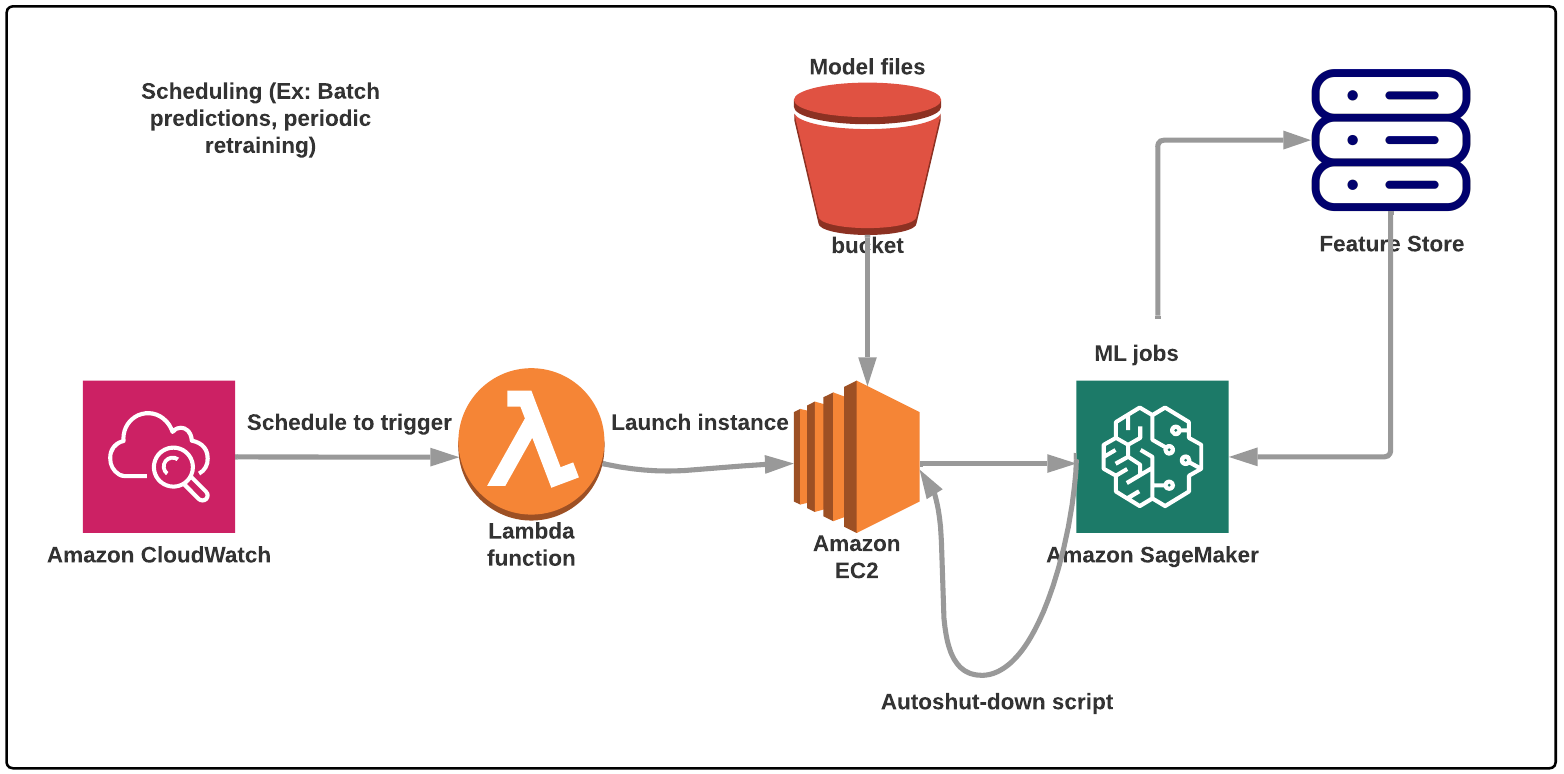
The pipeline can be scheduled as a SageMaker processing job on the cloud using lambda function and EC2.
It is prerequisit to have an EC2 instance created before scheduling the pipeline. Refer to the following link (Create an EC2 Instance) for more information on how to create an EC2 instance. Safely store pem key used for the instance, this we are going to need for transfering files to EC2 instance.
flow diagram
Scheduling Command
Pipeline scheduling can be performed using the command rlabs aws pipeline schedule.
#Example 1:

$ rlabs aws pipeline schedule --instance-id <instance_id> --sagemaker-instance-type ml.t3.xlarge --pem-file <path_to_pem_file> --ec2-username <aws_instance_user_name> --repository-path /path/to/repository --pipeline-config-file pipeline.yaml --credentials-file credentials.yaml --event-schedule rate(1 hour) --role-name <aws_role_name> -vv

#Example 2:
$ rlabs aws pipeline schedule -id i-07c3cedbe6988ed49 -p ~/.ssh/instance.pem -u ubuntu -pc pipelines/sample_pipeline.yaml -c credentials_modified.yaml -es "rate(10 minutes)" -vv
Note
- Params:
-id,--instance-id: EC2 machine instance id [required]-sit,--sagemaker-instance-type: Instance type to be used for SageMaker Processing job [default: ml.t3.xlarge]-p,--pem-file: Path to the pem file used for transfering files to EC2 instance [required]-u,--ec2-username: User name of the EC2 instance [default: ec2-user]-r,--repository-path: Path to the data apps project repository [required]-pc,--pipeline-config-file: Path to the pipeline configuration file [required]-c,--credentials-file: Path to the credentials file (contains AWS credentials, data warehouse credentials) [defaule credentials.yaml]-es,--event-schedule: Event schedule for the pipeline [required]-r,--role-name: Role name to be used for the pipeline [default: <data apps project name>-lambda-role, “.” and “_” will get replaced by “-” in the data apps project name]-vv,--verbose: Verbose mode [optional]
What the script does is
Starts the EC2 instance if it is not running
Transfers the configuration script files to the EC2 instance, these scripts will be used to setup the EC2 instance and run the pipeline
Note
Setup scripts does following:
Creating conda environment if it is not created.
Script for running the pipeline and stopping the EC2 instance after completion of the pipeline.
Deletes existing cron jobs if any. This is to ensure that only one cron job is running at a time for the pipeline, puts cron job for starting “Script for running pipeline” when EC2 instance boots up.
Transfers the source code and credential files to the EC2 instance ( Using
rsynccommand )Creates lambda role if it is not created. ( Uses given role name if it is provided)
Creates lambda function, before doing that it deletes existing lambda function with the same name if it is created.
Puts event bridge rule to start the lambda function when EC2 instance boots up. Delete existing event bridge rule with the same name if it is created.
Enable/Disable Pipeline Scheduling
Enabling pipeline scheduling.
$ rlabs aws pipeline enable-scheduling --credentials-file \
   credentials.yaml --repository-path /path/to/repository
Disabling pipeline scheduling.
$ rlabs aws pipeline disable-scheduling --credentials-file \
   credentials.yaml --repository-path /path/to/repository
Note
- Params:
-c,--credentials-file: Path to the credentials file (contains AWS credentials, data warehouse credentials) [default credentials.yaml]-r,--repository-path: Path to the data apps project repository [required]